

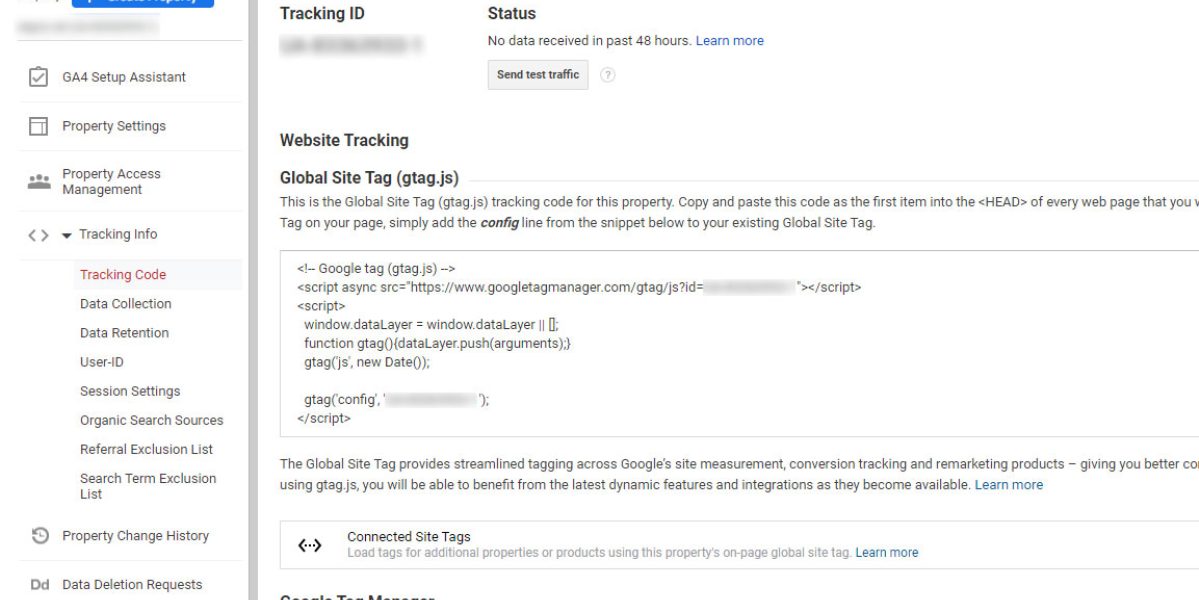
There are several ways to include custom JavaScript code in the header of your page. In this article, I will present the easiest way - a method that allows us to do this via the Magento 2 administrative interface without requiring programming skills or additional access. This method can be used for integrating third-party services such as live chat, monitoring tools, and similar.
Adding JavaScript code to a Magento 2 store
Content > Design > Configuration > Edit > HTML Head > Scripts and Styles
Step-by-step guide for beginners
Although it seems simple, this can cause some questions for those who are not very familiar with Magento. Therefore, I present a complete guide, step by step, on how to add a code snippet:
The first thing we need to do is open the administrative dashboard and log in.
Then in the Magento menu, go to: Content > Design > Configuration
Click the "Edit" link for the store view. This will usually be the first item if your Magento has only one store view. If there are more, select the website where you want to include your script.
Click on the "HTML Head" tab -> "Scripts and Styles" or "Footer" -> "Miscellaneous HTML".
Enter your code in the field and click the "Save Configuration" button.
If any other code is already present, your code will be entered after all other code.
Troubleshooting display issues
The code was added, but there are no changes in the store. Caching issue - Your page is likely cached, and you need to clear it. You can clear the store cache here: Magento Admin > System > Cache Management > Select All > Refresh > Submit
Adding JavaScript code to a Magento 1.9 / OpenMage store
The process of adding custom JavaScript code to the page header is similar for Magento 1.9 or OpenMage. Here is a simple guide on how to do it:
First, open the administrative dashboard and log in.
In the Magento menu, navigate to: System > Configuration > General/Design.
Click on the "HTML Head" tab and find the "Miscellaneous Scripts" option or "Footer" and "Miscellaneous HTML".
Enter your code in the appropriate field and click the "Save Configuration" button.
With this, you have successfully added custom JavaScript code to the header of your Magento store. This process is easy and allows you to integrate additional functionality or services into your store without programming skills.
Troubleshooting display issues
The code was added, but there are no changes in the store. Caching issue - Your page is likely cached, and you need to clear it. You can clear the store cache here: Magento Admin > System > Cache Management > Select All > Refresh > Submit
Need to add code with events?
In this case, you will need to add a module because dynamic events cannot be added directly to the fields. For this purpose, we have developed several different modules, such as the Google Analytics 4 (gtag) module for Magento 1.9 / OpenMage.

My name is Anže and I am a Magento certified solution specialist and builder of many award-winning online stores. I am the architect of all Degriz projects.
Write to me →