


Tracking codes (Google Analytics 4, Google Tag Manager, Meta Pixel, Microsoft Clarity, Hotjar) are short snippets of code that the tool needs in the head of every page. Magento has one field for them.
Before you start
- the code the tool gave you (it starts with
<script>or<meta>), - the shop language or languages it should apply to.
Where the code goes
Content › Design › Configuration
In the list, find the row with the store view (the Store View column, for example Slovenian) and click Edit. If the code should apply to all languages, edit the website row (the Website column filled in, Store View empty).

Edit on a store view row: settings for one language. Expand Other Settings and then HTML Head.
Paste the code into the Scripts and Style Sheets field. If the field is locked, first untick Use Default Value to the right of it. Do not delete the existing content; add the new code below it.
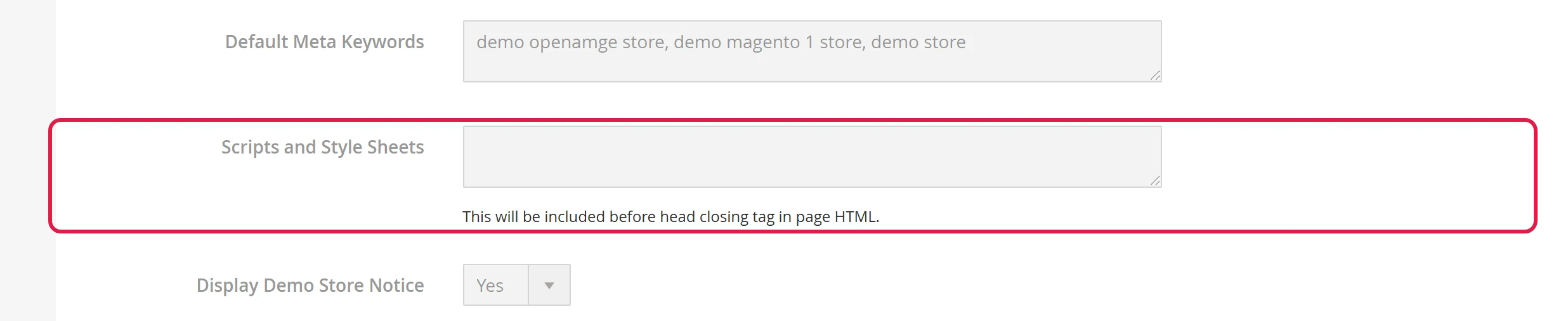
Scripts and Style Sheets - this is where code the tool needs in the page head goes. Click Save Configuration and flush the cache (how).
Check that the code works
Open the shop in your browser, accept cookies and check the live data in the tool (in Google Analytics, Reports › Realtime).
If there is no data, check that you saved the code in the right store view and flushed the cache.
Tracking purchases
The code on its own measures page visits. For purchase data (order value, products, checkout funnel), the shop has to send events from the cart and checkout to the tool. We set this up for you with a tracking module; just send us your measurement ID (GA4 G-..., Meta Pixel ID).
Common problems
After adding the code, the page is blank or broken
The code is incomplete (a closing tag is missing) or was changed while copying. Open the field, remove the code, save, and email the code to us.
Analytics shows visits but no purchases
Purchase events have not been set up. See the Tracking purchases section.
The code only works in one language
It was entered for the store view of one language. Enter it for the other language too, or at website level.