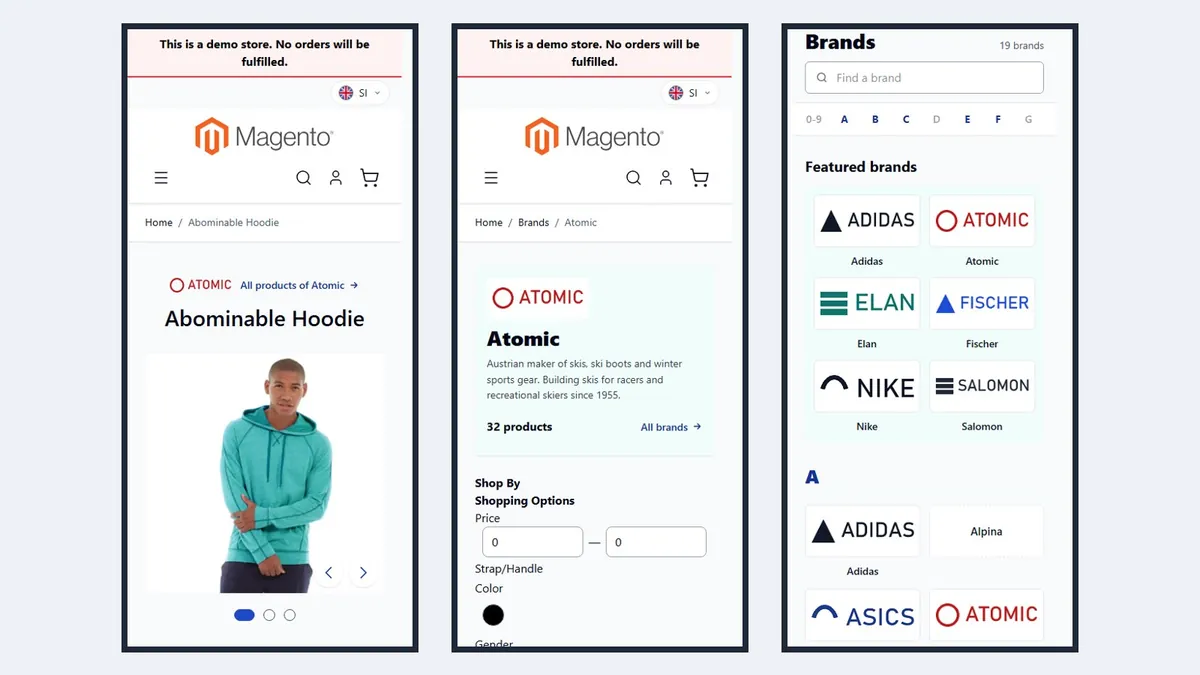
You edit a brand in the brand grid or directly in the category. Changes apply at once and the page refreshes by itself.
Editing a brand
Catalog › Brands › Brands
Click Edit in the brand row. At the top are the option labels per store view (read only; change the text at the attribute).
Logo: PNG, SVG or WebP up to 2 MB, 480 x 240 px with a transparent background recommended. The module makes the smaller sizes for cards and the header. An SVG with scripts or external links is rejected.
Short description is shown in the brand page header. Choose a Store view to enter a translation; Use the value of all store views brings back the default text. Edit the long description at the category.
Featured puts the brand in the Featured brands strip of the list and in the carousel.
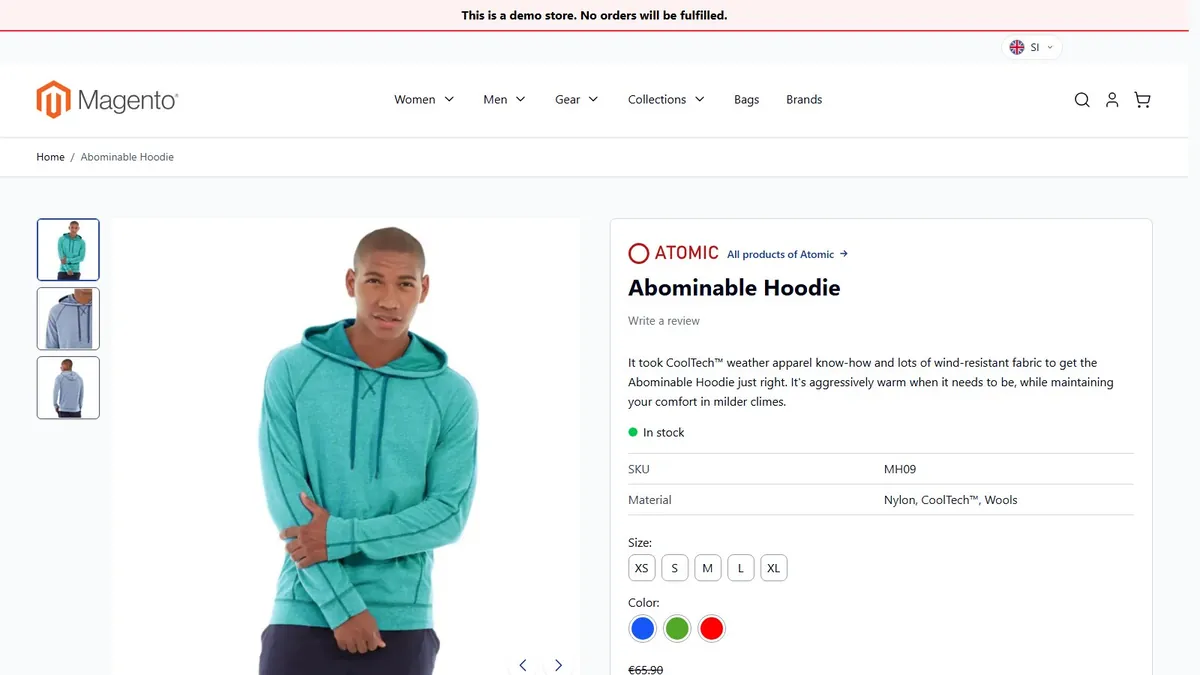
Mode, category and URL key
- Automatic: the module maintains the category (name when the option is renamed, switched off without products).
- Manual: you choose an existing category, for example a brand that already had its own page elsewhere in the tree. Nothing is created.
- Skip: the brand has no page; an automatic category is switched off, not deleted.
The URL key may contain lower case letters, digits and hyphens. Changing it changes the page address; the old address redirects (301). If another page uses the key, saving tells you. For a collision from the wizard you choose an existing category here or enter another key.
In the category
Catalog › Categories
Brand categories and the Brands category have the group Brand with the logo, the featured flag, the short description and a note that the module manages the category. On other categories the group is hidden. This is also where you edit the long description, FAQ and meta data of the brand page.