


A badge is a small label next to a product, for example New, Sale or Last items. Customers see it in the product list and on the product page, so they notice straight away what is special about the product. A badge can be an image or text: until you upload an image, the text is shown.
Before you start
- a list of the badges you want to use,
- badge images if you like (small ones, for example PNG with a transparent background).
1. Add a new badge
Each badge is one value of the Ikone attribute (Slovenian for "icons"). You add new ones in the product attributes.
Stores › Attributes › Product
Find and open the Ikone attribute.
In the Manage Options (Values of Your Attribute) section, click Add Option and enter the badge name.
Click Save Attribute.
2. Image, text and tooltip
Catalog › Product Icons
At the top, leave Scope: on All Store Views. What you set here applies everywhere. For another language, choose that store view and enter the translation.
In the badge row, choose a file under New image, enter the wording under Text and use Sort order to decide which badge comes first.
In the next box (the column headed Clear) you can enter a short explanation. Customers see it when they hover over a text badge.
The checkbox at the end of the row deletes the badge settings for the selected store view.
Click Save icons.
3. Badge on a product
Catalog › Products
Open the product, choose one or more badges in the Ikone field (hold Ctrl to choose several) and click Save.
4. Automatic rules
At the bottom of the Product Icons page there is an Automatic rules section. A rule adds a badge to every product that matches the condition. A badge chosen by hand always stays, the rule only adds to it. Enter a new rule in the last, empty row: Name, Adds icon, Condition, Value, Store view and Active. Then click Save icons.

- Name - the rule name.
- Adds icon - which badge is added.
- Condition - when the rule applies.
- Value - a number or text for the condition.
- Store view - the store view.
- Active - switches the rule on.
- Save icons - saves the badges and rules.
| Condition | Example value |
|---|---|
| Name contains / Name does not contain | REFILL (upper and lower case do not matter) |
| Price incl. tax is at least / at most | 50 |
| On sale (value = minimum discount in %) | 0 means any discount |
| Stock is at most | 5 (out-of-stock products are not counted) |
| Added within the last N days | 30 |
| In one of the categories (IDs) | 12,15 |
To delete a rule, tick Delete in its row and save.
Where the badges appear
Stores › Configuration › Magelan › Product Icons
In the Display section, choose Show in category listing and Show on product page. Under Badge position on the product page, choose Under the price or Above the product name. Click Save Config.
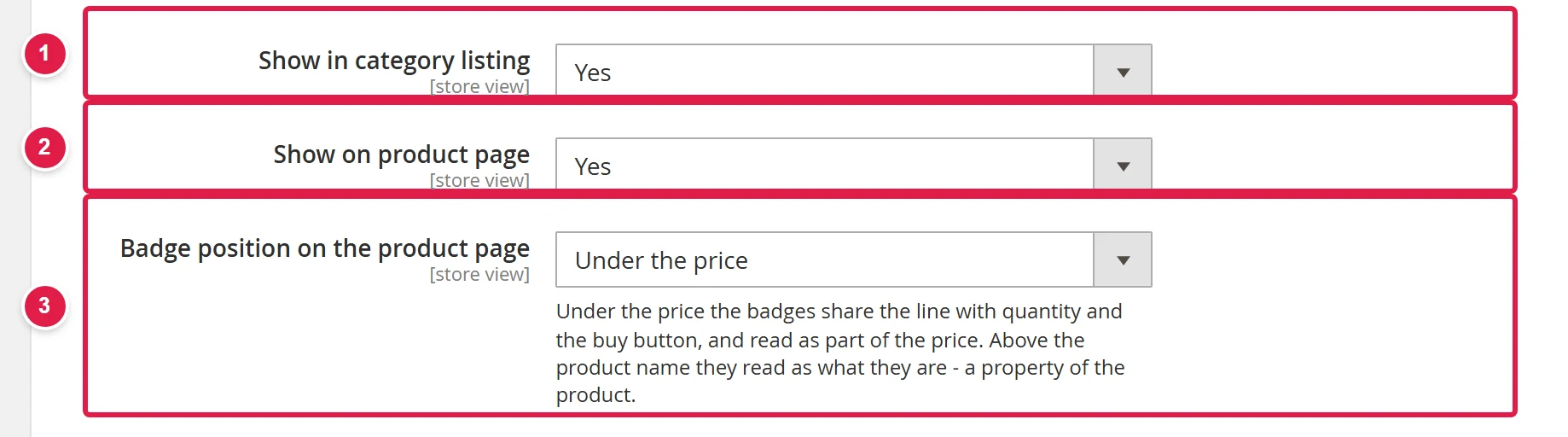
- Show in category listing
- Show on product page
- Badge position on the product page - Under the price or Above the product name.
Common problems
The new badge is not on the Product Icons page
The badge has not been added as a value of the Ikone attribute yet. Add it as described in step 1.
The badge does not show in the shop
Check that display is switched on in the settings and that the rule is active for the right store view. Then clear the cache.
The tooltip next to the badge does not show
The tooltip only works on text badges. For an image badge, only its text is shown on hover.