


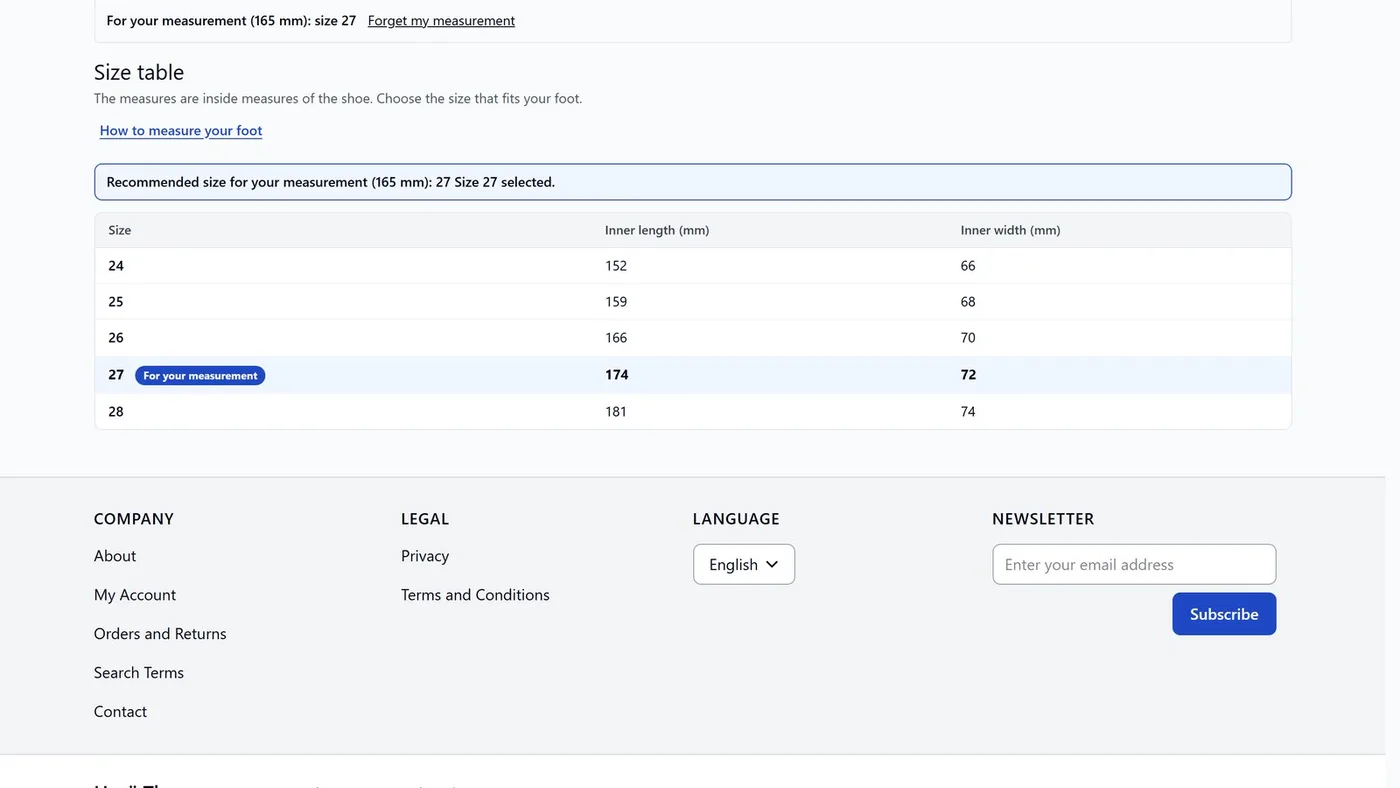
The size table shows the shopper measures per size next to the standard selector: the inside length and, if you like, the width of a shoe. The shopper picks a size by their foot, not by guessing. This is the table of version 1.x, now with settings instead of built-in values.

Before you start
- configurable products that are configurable by a size attribute,
- an attribute for the inside length (the option label is the number in mm, for example 165) and, if you want, an attribute for the width,
- optionally the Magelan_FootFinder module, which measures the shopper's foot.
1. Choose the attributes
Stores › Configuration › Magelan › Shoe Size Guide
Open the Size table group:
Size attribute: the attribute a row is made for. The product must be configurable by it.
Length attribute: the attribute with the inside length. The option label is the number in mm.
Width attribute: the attribute with the width. If you choose -- None --, there is no width column.
inner_lenght, with the same spelling mistake as in 1.x, so that no store breaks.2. Column labels and note
Size column label, Length column label and Width column label: when empty, the translated default texts are used (Size, Inner length (mm), Inner width (mm)).
Note: text under the table. Empty means no note.
Select the recommended size: if the shopper has measured their foot with Magelan_FootFinder, the fitting size is marked in the table and selected.
Click Save Config.
3. The how-to-measure window
In the Measure group you edit the window that opens from the link under the table:
- How to Measure Link Text: the text of the link. Empty uses the default "How to measure your foot".
- How to Measure Content (window): the HTML in the window. Empty uses a short built-in instruction (stand with the foot against a wall on a sheet of paper, mark the tip of the longest toe, measure the distance in millimetres).
- Minimum fit room (mm) and Maximum fit room (mm): how many mm longer the inside length of the shoe must be than the foot. The defaults are 5 and 22. The recommended size is calculated from this range.
4. Link with the Shoe Size Finder
When the shopper measures their foot with Magelan_FootFinder, the module recognises it in the same browser. In the size table the fitting size is marked "For your measurement" and selected on the product page. In the order table the same size is marked, but the quantity is not filled in by itself. The measurement stays only in the shopper's browser. The module also works without FootFinder.
The two modules share the settings of this section, so the Measure group and the Shoe Size Guide section belong to both.
Common problems
The size table does not show
The product must be configurable by the attribute chosen in Size attribute. Leave Default view on Auto or choose Size table on the product. The command magelan:optiontable:check SKU prints the rows the table would have.
A length or width is missing in a row
The attribute option label must be a number in mm (165 or 16,5). Check the attribute options and the chosen length and width attributes.
The recommended size is not marked
The shopper must have the FootFinder measurement saved in the same browser, and Select the recommended size must be on.