


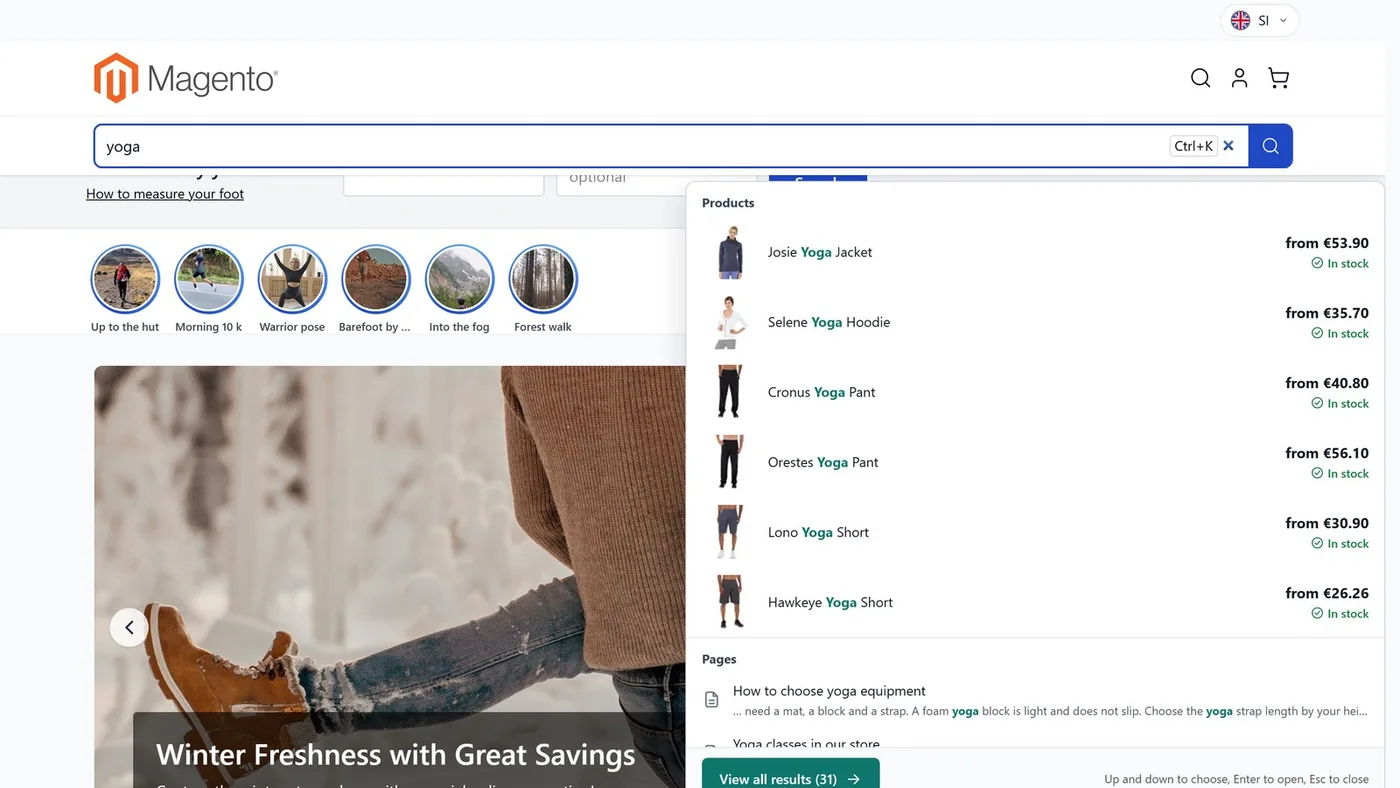
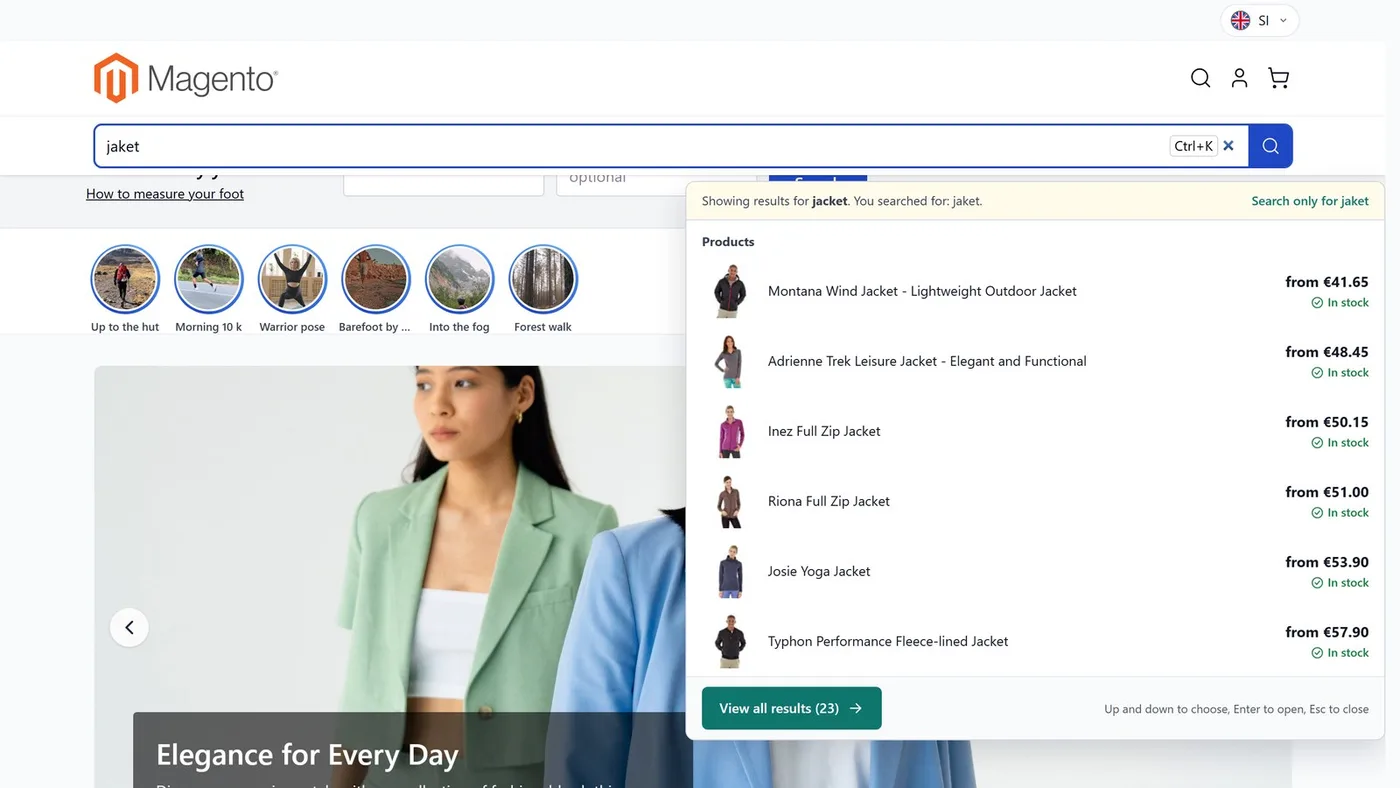
Smart search opens a drawer under the search box with suggestions for products, categories and pages while the customer is still typing. It corrects typing mistakes, offers popular and recent searches and, when nothing is found, shows where to go next. The defaults are good, so switching it on is enough to start.
Before you start
- the Quick Search module is installed,
- a decision on whether you want images, prices, stock status and SKU in the suggestions.
1. Switch it on
Stores › Configuration › Magelan › Quick Search › General
Set Enabled to Yes. Below it, Detected search engine is read only and shows which search engine your store uses. The module works with any engine Magento supports.
2. Set up the suggestions
Stores › Configuration › Magelan › Quick Search › Suggestions
Minimum characters is how many characters the customer must type before suggestions appear (recommended 2). Delay (ms) is the pause after the last key before the request is sent.
With Number of products, Number of categories and Number of pages you decide how many results of each kind are shown. A value of 0 switches that kind off. Pages come from the Search CMS Pages module; without it the pages section is not shown.
With the yes/no fields Show image, Show price, Show stock status and Show SKU choose what is visible for each product. The price is the one the catalog shows to the logged in customer, so customer group and customer specific prices are respected. Stock is shown only as "In stock" or "Out of stock", never as an exact quantity.
3. Matching and typing mistakes
Stores › Configuration › Magelan › Quick Search › Matching
- Second attempts when nothing is found: if the exact search finds nothing, the module also tries glued words or letters and digits apart. So "m2070" finds "M 2070" and "hp957" finds "HP 957". It is only tried when nothing was found, so working searches are not made worse. The results page uses the same attempts.
- Correct typing mistakes: "cannon" finds "canon". Corrections use words from your catalog, and words with digits (model numbers) are never corrected.
4. Popular and recent searches
Stores › Configuration › Magelan › Quick Search › Popular and recent searches
Show popular searches makes the drawer show the most used terms of the store that found products (the count is set by Number of popular searches). Show the customer's recent searches adds the customer's own recent searches (count set by Number of recent searches). These are kept only in the customer's browser and are never sent to the server; the drawer has a "Clear history" button.
5. What is shown when nothing is found
Stores › Configuration › Magelan › Quick Search › No results
Enter a message in Text; {term} is replaced with what the customer typed. Show main categories offers categories to browse instead. If you switch on "Write to us" button, a button is shown and its address goes into Button link (a path such as /contact or a full address).
6. Recording searches
Stores › Configuration › Magelan › Quick Search › Tracking
Record searches feeds the search report (see the next guide). Only the text of a search and counters are stored: no IP address, no customer, no session. Terms with an @ sign, a long run of digits or more than 80 characters are never stored. In Keep for (days) set how long entries are kept; older ones are deleted every night.
7. Advanced
Stores › Configuration › Magelan › Quick Search › Advanced
- Cache (seconds): applies to the list of found product ids. Prices, stock and customer groups are never cached. 0 = off.
- Full screen below (px): on narrower screens (phones) the search opens over the whole screen. 0 = never.
- Accent color: for example
#f26322. Empty means the default color of the theme. - Attributes left out: attribute codes, one per line, that the AI review does not see (for example internal notes).
8. Check it
Save the settings, click into the search box in the store and type a product name. The drawer should open with suggestions. If it does not, read the guide "Errors and solutions".
Except for the AI search review group, you can also change the settings per store view or website. After changing content or settings, clear the cache if needed.