


Quick order is for customers who know exactly what they want: instead of browsing, they type codes and quantities, paste a list or upload a file. We check every line before anything goes into the cart and show for each one what is fine and what is not.
Before you start
- sign in to your account (unless the store also allows guests),
- a list of codes and quantities, typed by hand or in a CSV or XLSX file.
1. Open the quick order
The Quick order link is in the store header and in the account menu, and the page is at /quickorder. You can add lines in three ways, chosen in the tabs Enter, Paste a list and Upload a file.
2. Add products
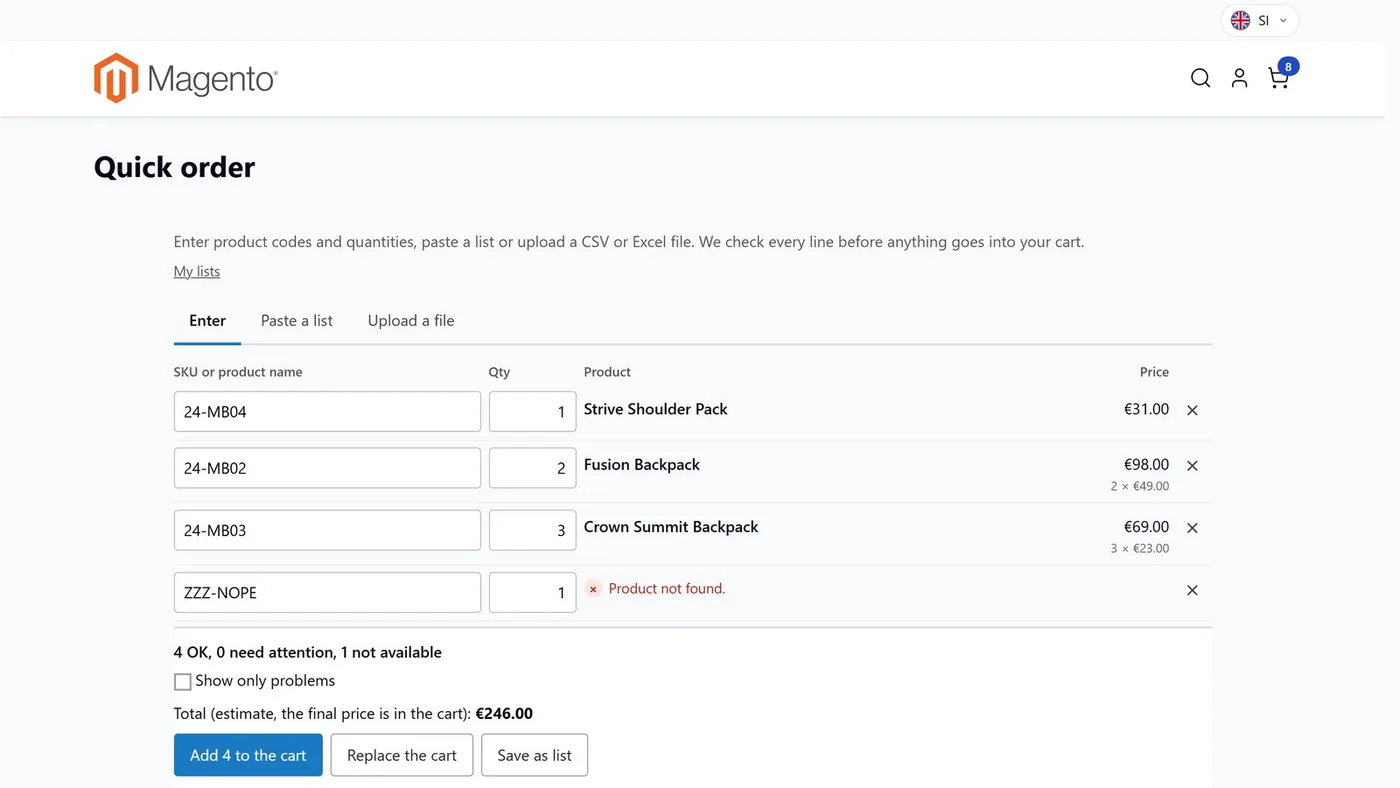
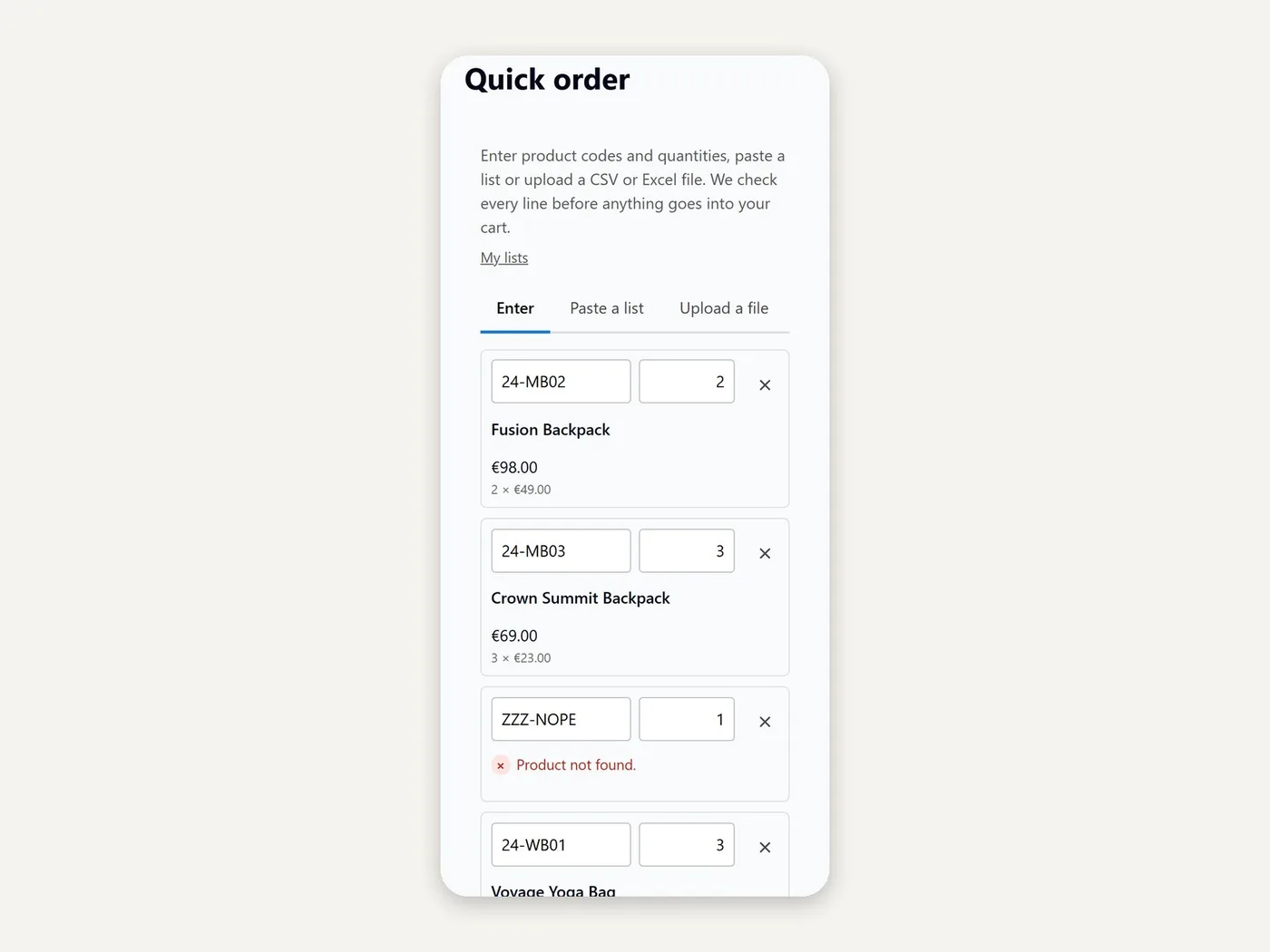
Enter: start typing in SKU or product name and pick a suggestion, then enter the quantity. Add line adds a new line.
Paste a list: paste your list, one product per line. Code and quantity can be separated by a semicolon, comma, tab, space or the letter x. Click Recognise lines.
Upload a file: click Choose a file or drop the file on the field. CSV and XLSX are accepted. Sample file gives you an example of the format.
If we did not recognise the columns of the file, choose Column with the code, Column with the quantity and, if you like, Column with the name (optional). If the first line is a header, tick The first line is a header, then click Use these columns.
3. Review the notes on the lines
Below the list you see how many lines are fine and how many need attention. Show only problems shows just those. Lines can carry these notes:
- "Product not found. Did you mean ...?" - we do not know the code and suggest a similar one,
- "Out of stock." or "Only ... available." - stock is not enough,
- "Minimum quantity is ..." or "Maximum quantity is ..." - the quantity is outside what is allowed,
- "Changed to ... (quantity step ...)" - we rounded the quantity to the step the product allows,
- "Merged with line ..." - the same code is already higher in the list,
- "Choose the options on the product page." - the product needs options chosen, so it cannot be added here.
Prices and stock are current for you as a customer. The total is an estimate, the final price is in the cart.
4. Add to the cart
Click Add ... to the cart. If you want it to replace what is already in the cart, choose Replace the cart (we ask for confirmation first). Lines that could not be added stay on the page with the reason, and you can download them with Download the ... lines that were not added (CSV). All lines are checked again on the server before they are added.
5. Save a list for next time
Click Save as list and enter a List name.
Next time open My lists in the account menu and click Load next to the list. The list loads with current prices and stock.
You can Rename, Duplicate or Delete a list. The number of lists and lines is limited by the store settings.
6. Repeat an old order
On the order page in your account click Reorder in the quick order. The lines of the order are loaded and checked with current prices and stock. You can also export an order with Export (CSV) or Export (XLSX).
Common problems
"The file is not a CSV or XLSX file"
Old Excel files (.xls) are not supported. Save the file as .xlsx or .csv and upload it again.
"The columns of the file were not recognised"
Upload the file on the Quick order page and choose the code column and the quantity column yourself.
"The file has ... lines, the maximum is ..." or "The file is larger than ... MB"
Split the file into smaller parts. The store sets both limits; if you need a higher one, contact the store.
"No codes recognised"
Check the separators: one product per line, code and quantity separated by a semicolon, comma, tab or space.
"Too many requests"
Requests are limited per minute. Wait a moment and try again.