


HUB-3A is the Croatian version of the bank payment slip. A customer who chooses this payment method gets the transfer details, a barcode and a completed payment slip (uplatnica) as a PDF after placing the order. They scan the code with their mobile banking app and the payment is filled in without any typing, or print the slip and pay at a bank or post office. For Slovenian customers there is the UPN payment slip (the Slovenian equivalent); this method is meant for your Croatian shop and a Croatian bank account.
Before you start
- a Croatian IBAN (21 characters, starting with HR) and your bank's BIC,
- the official name and address of the payee, exactly as your bank has them.
1. Switching it on and the account details
Stores › Configuration › Sales › Payment Methods › HUB-3A payment slip (Croatia)
At the top left, choose the Croatian website or store view, so the settings only apply there.
Set Enabled to Yes. In Title, enter the name the customer sees at checkout (for example Plaćanje uplatnicom), and in Instructions a short explanation shown with the payment method and above the transfer details.
In Pay within (working days), enter how many working days the customer has to pay. The deadline is counted from when the order is placed and does not change later.
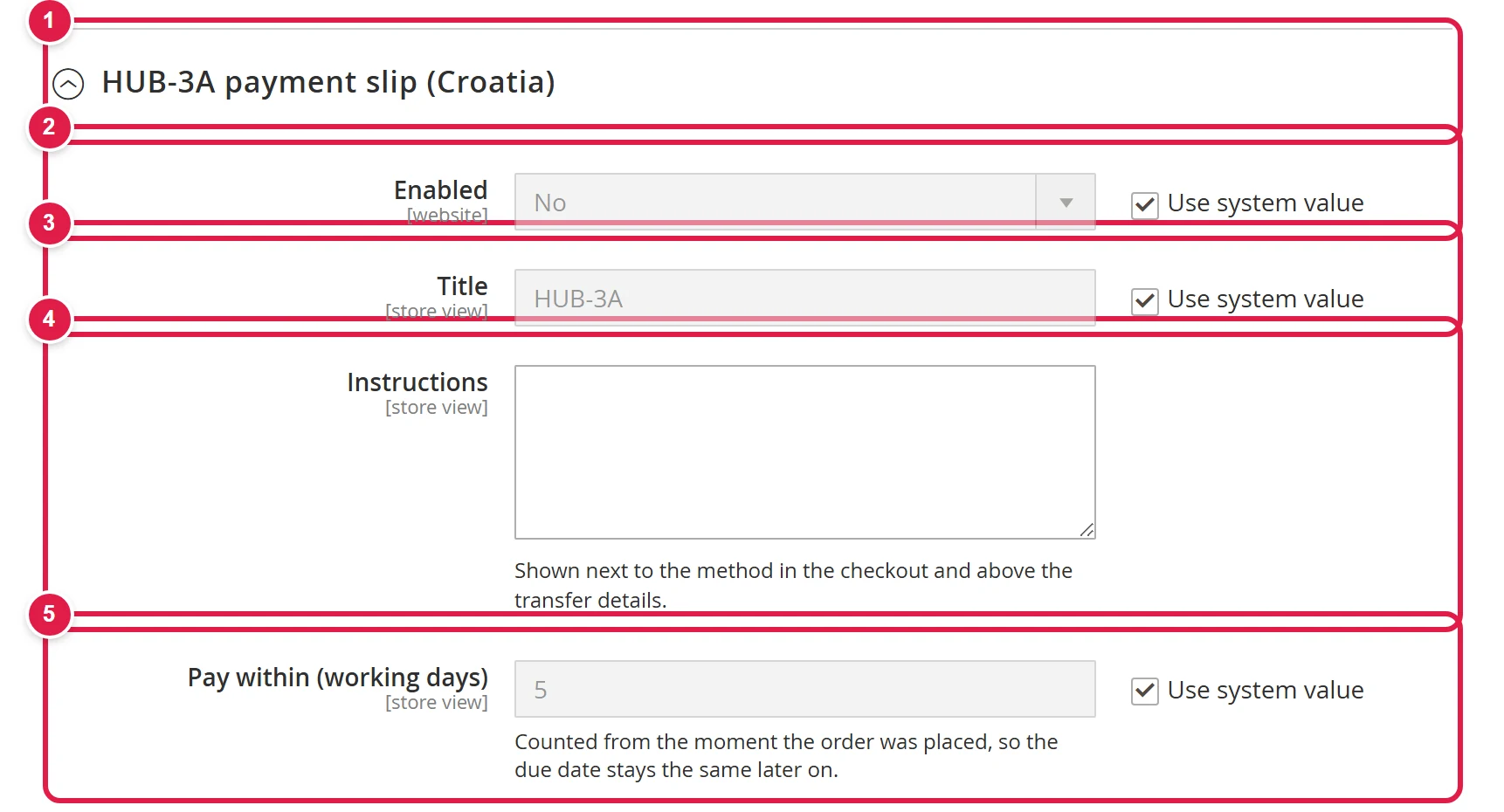
- The HUB-3A payment slip (Croatia) section among the payment methods.
- Enabled - Yes.
- Title - the payment method name at checkout.
- Instructions - a short explanation shown with the payment method.
- Pay within (working days) - counted from when the order is placed.
In the Bank account group, fill in Account holder, Street, ZIP, City, IBAN, BIC and Bank name.
Leave Reference model and Purpose code as they are (HR00 and GDDS): the reference is the order number and the purpose is a purchase of goods.

- Bank account - holder, address, IBAN, BIC and bank name, exactly as your bank has them.
- Reference model - HR00.
- Purpose code - GDDS.
Leave the four display settings (Show the payment details on the order success page, Show in the order e-mail and order view, Show the HUB-3A barcode and Attach the payment slip PDF to the order e-mail) set to Yes; the table below explains what they do.
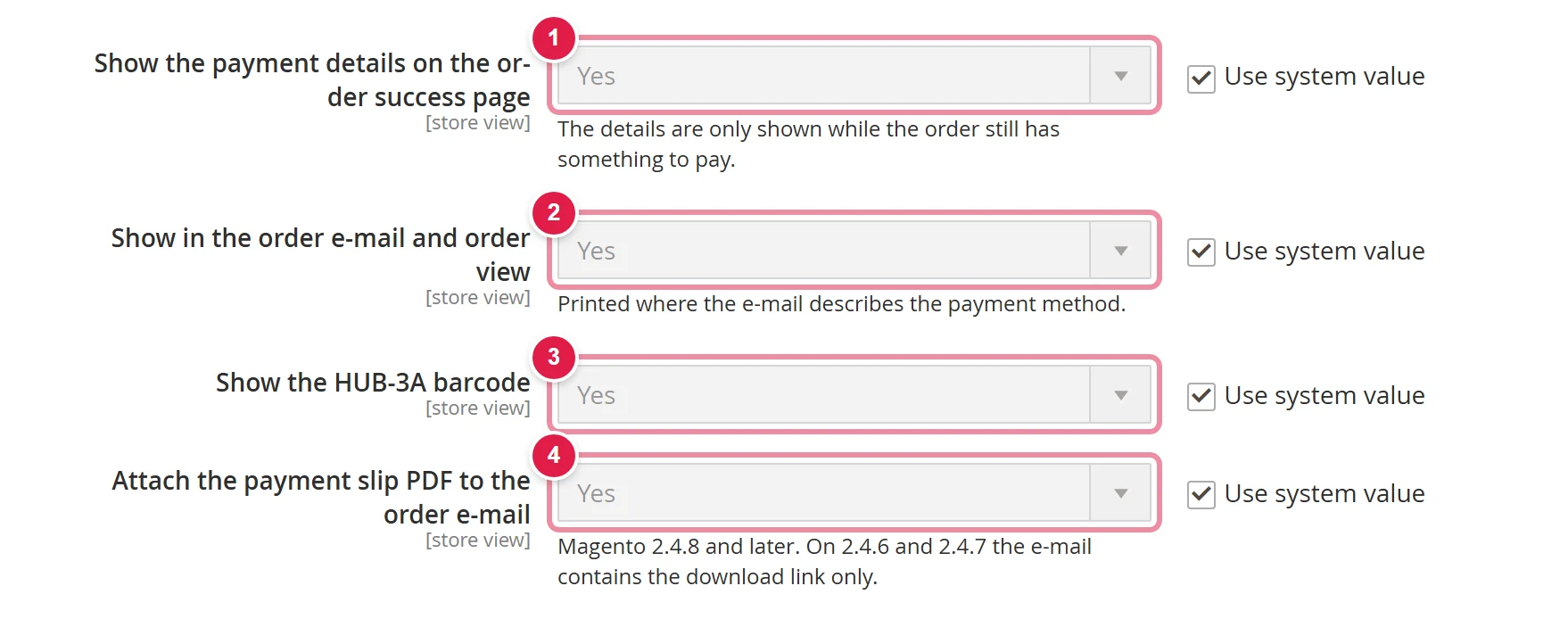
- Show the payment details on the order success page.
- Show in the order e-mail and order view.
- Show the HUB-3A barcode.
- Attach the payment slip PDF to the order e-mail.
Click Save Config.
2. Where the customer sees the details
| Setting | Where it is shown |
|---|---|
| Show the payment details on the order success page | straight after the order is placed, with the barcode and a link to download the PDF slip |
| Show in the order e-mail and order view | in the order confirmation email and in the customer's order view; you see the same on the order in the admin |
| Show the HUB-3A barcode | the barcode below the details, with a note to scan it with a mobile banking app; in e-mails it is embedded in the message, so the customer also sees it in Gmail |
| Attach the payment slip PDF to the order e-mail | the completed slip as an attachment to the order confirmation (if your shop does not support attachments, the e-mail contains a download link instead) |
The customer sees a How to pay section with the payee, IBAN, reference model and number, purpose, amount and payment deadline, and a link to download the slip. The details are shown until the order is paid; once you mark it as paid, they disappear. You can also download the slip yourself on the order in the admin.
3. When the payment arrives
The order stays in its starting status until you see the transfer in your bank account. Find it by the reference (the order number) under Sales › Orders and process it as part of the usual order workflow.
Common problems
The mobile banking app cannot read the code
Check the IBAN (21 characters) and that the payee name has no special characters the standard does not allow. If everything is correct, send us the order number and we will check the code.
The payment details are missing from the email
Check Show in the order e-mail and order view for the Croatian store view. The details are also only included in emails for orders with this payment method.
Slovenian customers cannot see this payment method
That is correct. Offer Slovenian customers the UPN payment slip.