


The most common setup: one flat shipping rate for all orders and free shipping above a certain amount. Couriers with their own connection (GLS, DPD, Pošta Slovenije, the Slovenian postal service) have their own settings, which we set up during installation.
Where the settings are
Stores › Configuration › Sales › Delivery Methods
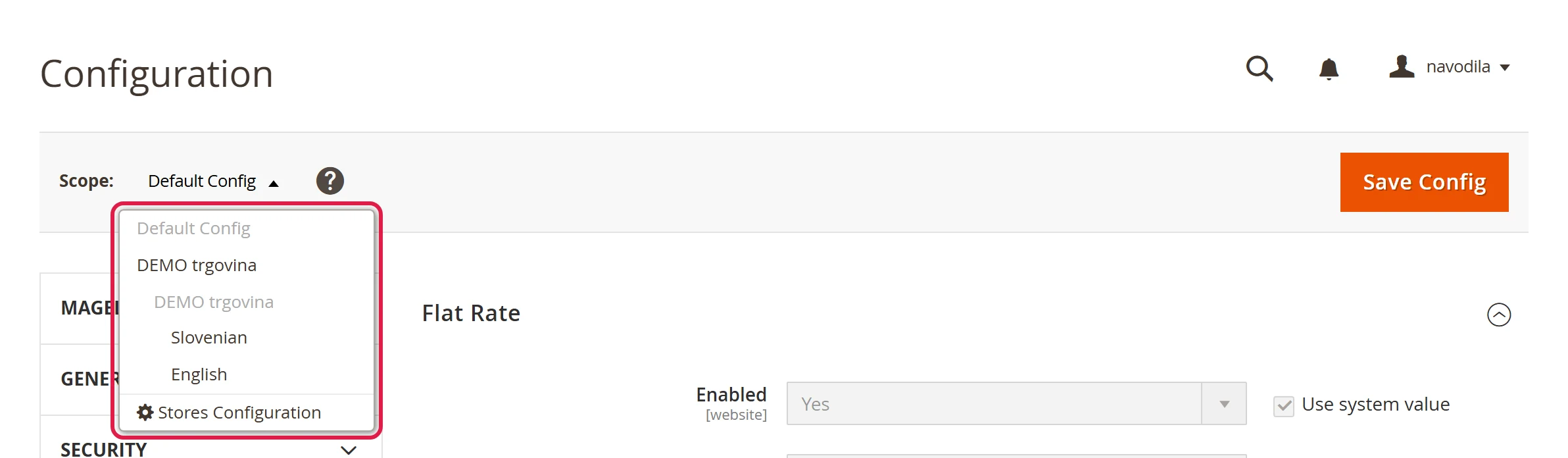
Flat shipping rate (Flat Rate)
Expand Flat Rate and set:
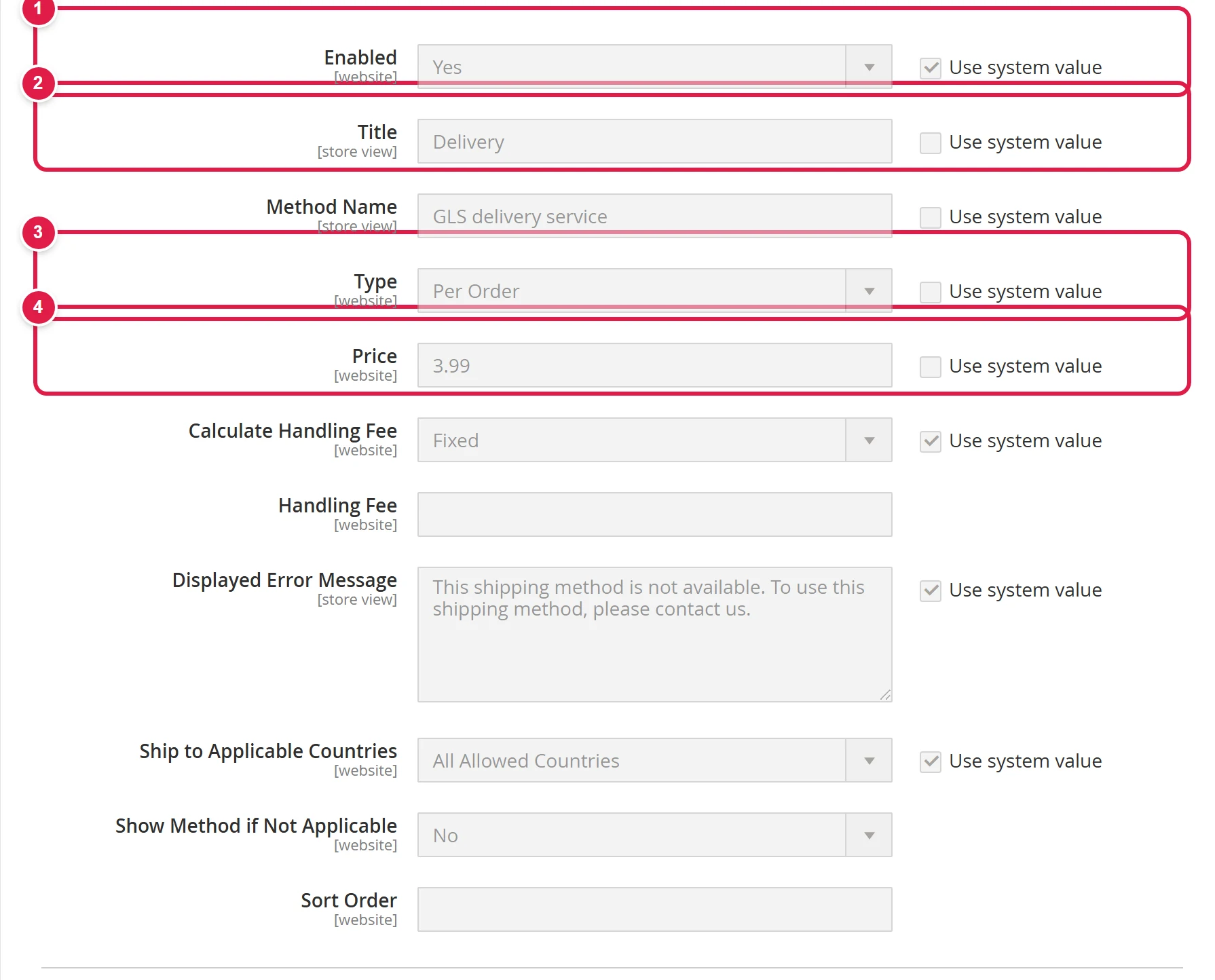
- Enabled
- Title - the carrier name at checkout, for example "Post".
- Type - Per Order (once) or Per Item (for each item).
- Price - the shipping cost.
Method Name is the second part of the label at checkout, for example "Home delivery".
Click Save Config.
Free shipping above an amount
Expand Free Shipping:
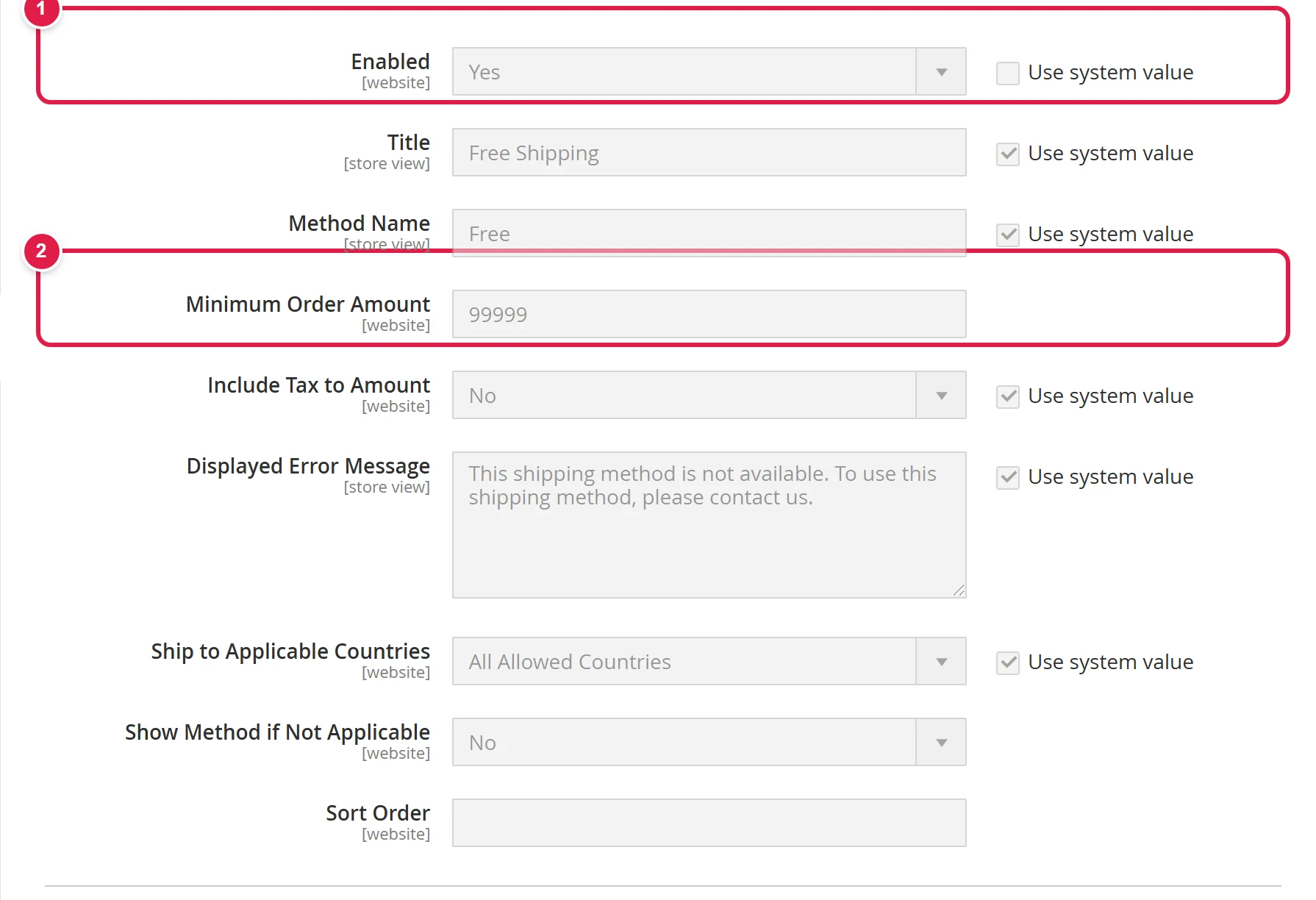
- Enabled
- Minimum Order Amount - shipping is free from this amount upwards.
Below this amount, the customer does not see free shipping; above it, they get it as an extra method. Include Tax to Amount decides whether the amount is compared with the value including VAT.
Changing the free shipping threshold
When you change the threshold (for example from 50 to 80 EUR), update every place it appears:
- Minimum Order Amount in the Free Shipping section,
- cart price rules that give free shipping (Marketing › Promotions › Cart Price Rules),
- texts that mention the threshold: the bar in the header or footer (a block), the shipping page, emails.
If your shop has the module for the message "you are X EUR away from free shipping", it reads the threshold from the setting by itself.
Shipping by weight or value
Table Rates let you set a price table by weight, value or number of items, and by country. You import the table as a CSV; we will help you with the first setup.
Restricting shipping for a specific product
Magento cannot exclude a shipping method for a specific product on its own (for example, a parcel locker for products that are too long, or store pickup only for fragile items). If you need this, write to us: we set it up with a module that adds a field for allowed or excluded shipping methods to the product.
Common problems
A customer from abroad sees no shipping
The shipping method has Specific Countries selected without their country. Add the country, or leave shipping there switched off on purpose.
Checkout shows two shipping options, one paid and one free
That is how Free Shipping works. If you want only the free option to remain above the amount, write to us and we will set up hiding the paid one.
The change only applies in one language
You saved the setting at store view level. Switch to Default Config or the website and enter it there, and tick Use Website at the store view.