


You can set up payment methods that do not need an external provider yourself. We set up card payments (Stripe, PayPal) for you, because they need a contract and keys from the provider.
Where the settings are
Stores › Configuration › Sales › Payment Methods
At the bottom of the page, under Other Payment Methods, there is a group for each method. Click a group's name to expand it.
Bank transfer
Expand Bank Transfer Payment and fill in the fields:
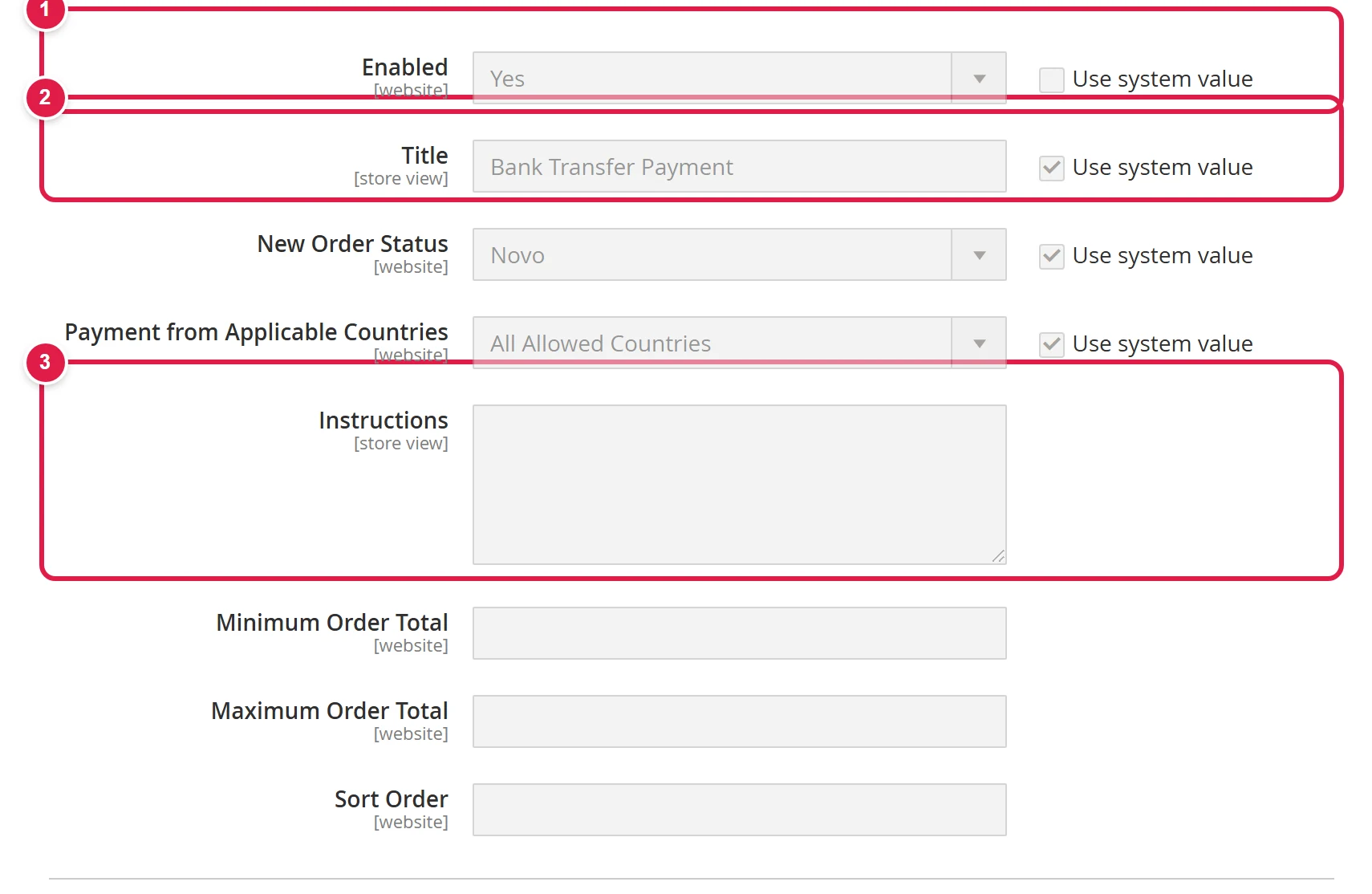
- Enabled - Yes
- Title - the method name at checkout, for example "Payment by bank transfer".
- Instructions - IBAN, recipient and payment reference
- the customer sees them at checkout and in the order confirmation.
Leave New Order Status at Pending. When the money arrives, confirm the order (order workflow).
Cash on delivery
Expand Cash On Delivery Payment:
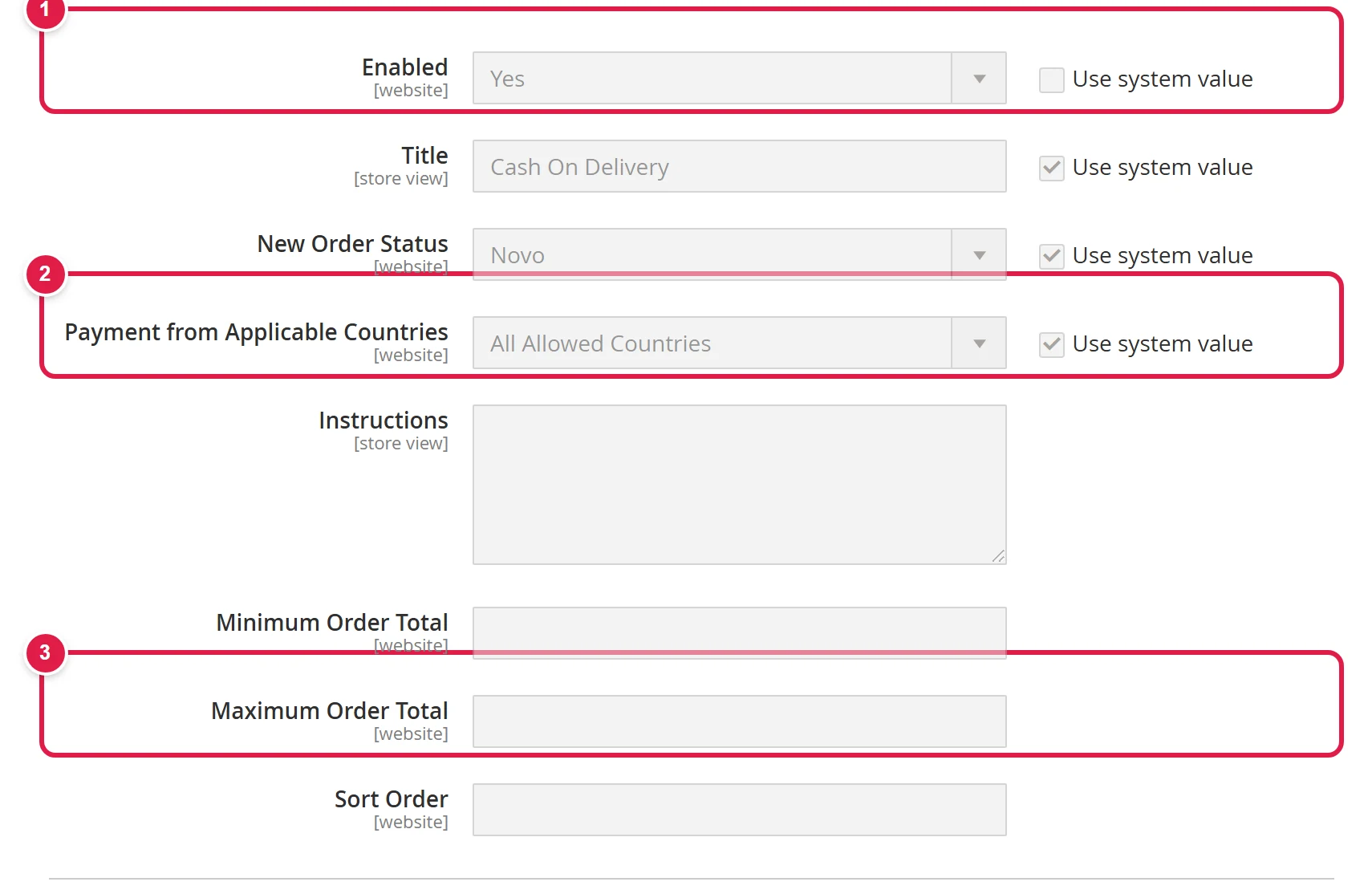
- Enabled
- Payment from Applicable Countries - cash on delivery is usually limited to Slovenia (Specific Countries).
- Maximum Order Total - cash on delivery is not available above this amount.
In Payment from Applicable Countries, choose Specific Countries and select the countries you deliver to with cash on delivery.
Order at checkout
The Sort Order field on each method sets its position at checkout (a lower number is higher up).
Common problems
The payment method does not show at checkout
Check the customer's country, the minimum and maximum order total, and that the right scope is selected (top left). Then flush the cache.
The change does not show in the English shop
The title and instructions are tied to the language. Choose the English store view and enter them there.