


You submit the orders going with Pošta Slovenije (the Slovenian postal service) from the order grid. The shop sends them to the post, creates a shipment with a tracking number for each one and gives you back the labels and a dispatch list.
Before you start
- a contract with Pošta Slovenije for electronic parcel submission (we enter the login details),
- weights entered on your products, because the parcel type and postage depend on the weight.
1. Settings you manage yourself
Stores › Configuration › Sales › Delivery Methods › Posta Slovenije › eSpremnica Shipments and Labels
- Cash on Delivery Payment Methods: the payment methods for which the post collects the amount. If your cash on delivery method is missing here, the parcel is sent without cash collection.
- Send Shipment E-mail: Yes, so the customer gets a notification with the tracking number when the label is created.
- Label Delivery: one combined PDF file, or a ZIP archive with separate PDFs.

- Cash on Delivery Payment Methods - methods for which the post collects the amount.
- Send Shipment E-mail - Yes, so the customer gets the tracking number.
- Label Delivery - one PDF file or a ZIP archive.
We set up the rest of this group (services, weights, UPN IBAN) and the eSpremnica Account and Advanced groups. If you want an extra service, for example registered mail or delivery in person only, write to us.
2. Several parcels for one order
Sales › Orders › (order)
If an order does not fit in one parcel, before printing go to the Number of Parcels (Posta Slovenije) section, enter the number in Parcels and click Save. Each parcel gets its own tracking number; the cash on delivery amount goes on the last parcel.
3. Submitting and printing
Sales › Orders
Select the orders going with Pošta Slovenije. Under Columns you can switch on the PS status column to see which ones are still Not submitted.
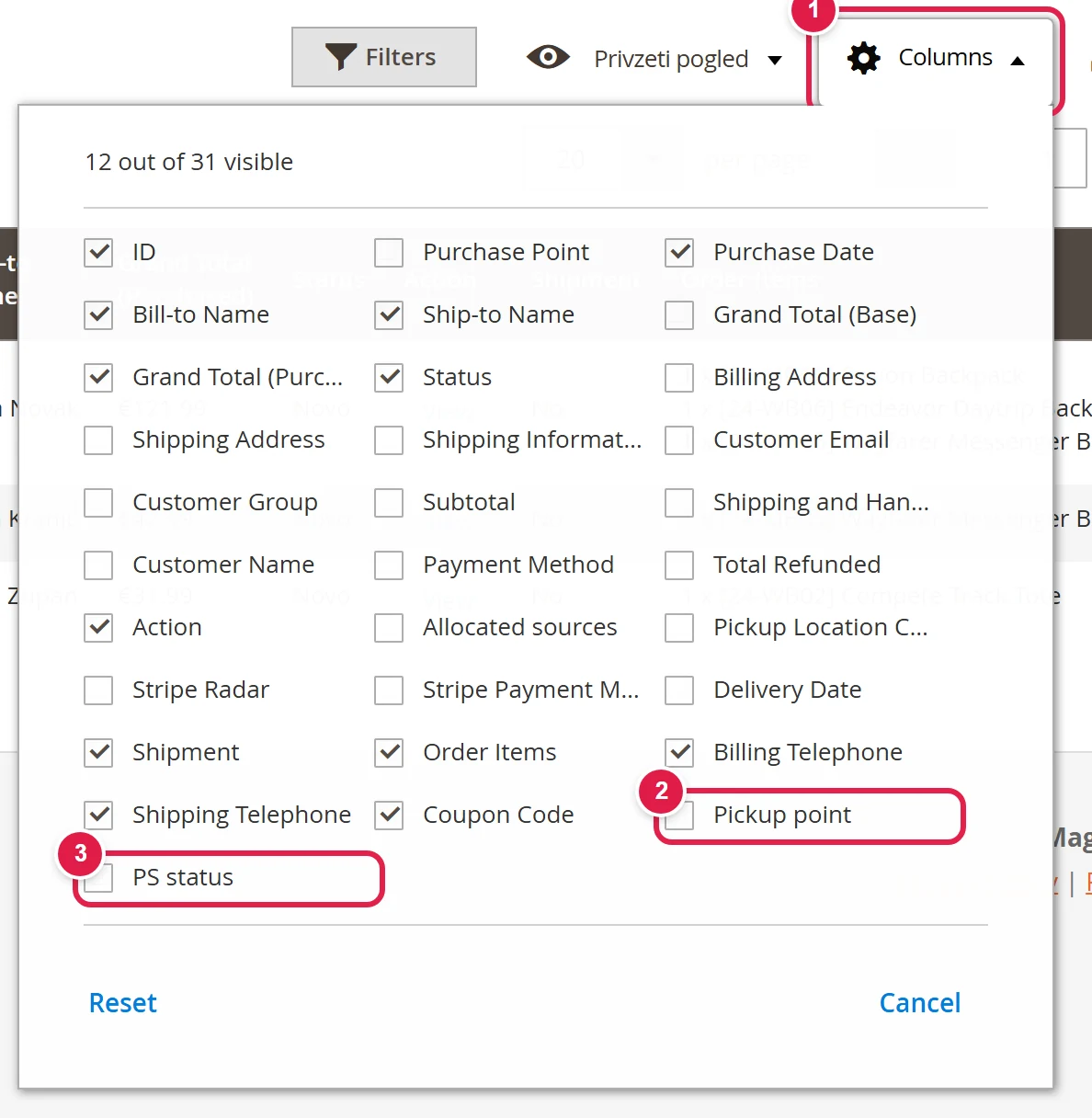
- Columns - the button above the order grid.
- Pickup point - the pickup point chosen for the order.
- PS status - the submission status with Pošta Slovenije.
Under Actions, choose Posta Slovenije: Print Labels and confirm. This action cannot be undone.

- Posta Slovenije: Print Labels - submits the selected orders and downloads the labels with the dispatch list.
- Posta Slovenije: Send to Portal - tells the post the pickup point (see 4.).
Wait; the post returns the parcel numbers with a delay. Your browser then downloads the file with the labels and the dispatch list.
Stick the labels on the parcels and hand in the dispatch list with the parcels at the post office.
A message at the top shows how many parcels were submitted. Orders that could not be submitted (for example with no address or no items to ship) are listed, and the reason is recorded in the Comments History of each order. An order that already has a shipment is not submitted again either; the reason is recorded there.
4. Send to Portal
The Posta Slovenije: Send to Portal action tells the post which pickup point was chosen for the order. We agree during installation whether you need it. The status changes to Sent to portal.
What the customer sees
In the shipping email and in their account, they see the tracking number and a Track this shipment link that opens tracking on the Pošta Slovenije website.
Common problems
The post did not return the parcel numbers in time
The batch may still be processing at the post. Do not repeat the action straight away; wait a few minutes and check PS status. If it stays Not submitted, repeat the action or write to us.
The labels came as a ZIP instead of one PDF
This is the Label Delivery setting. If you want one file and the option is not available, write to us.