


A tracking code on its own only measures page visits. This module also tells Google what shoppers do in your store: viewing a product list, viewing a product, searching, adding to and removing from the cart, viewing the cart, starting checkout, logging in, registering and purchasing, with the amount and the products. Google Ads uses the same data for conversions and dynamic remarketing.
Before you start
- a Google Analytics 4 account with a property for your store,
- optionally, a Google Ads account with a Purchase conversion set up.
We set it up for you
We enter the connection to your account (the measurement ID, the Google Ads conversion ID and conversion label, and server-side purchase sending). Add us as an editor in Google Analytics or send us the details. You don't need to add the code to your tracking codes: the module loads it itself.
What you can set yourself
Stores › Configuration › Magelan › Google data layer for GA4
| Field | What it does |
|---|---|
| Enable | switches tracking on; No stops all events, including purchases |
| Brand attribute / Optional brand name | where the product brand in reports comes from: an attribute (manufacturer by default) or one name for all products |
| Store name in reports | the store name sent with purchases; with two languages on one store, it lets you tell Slovenian and Croatian sales apart in reports |
| Debug mode | events show up in GA4 under Admin › DebugView; on a live store it should be No |
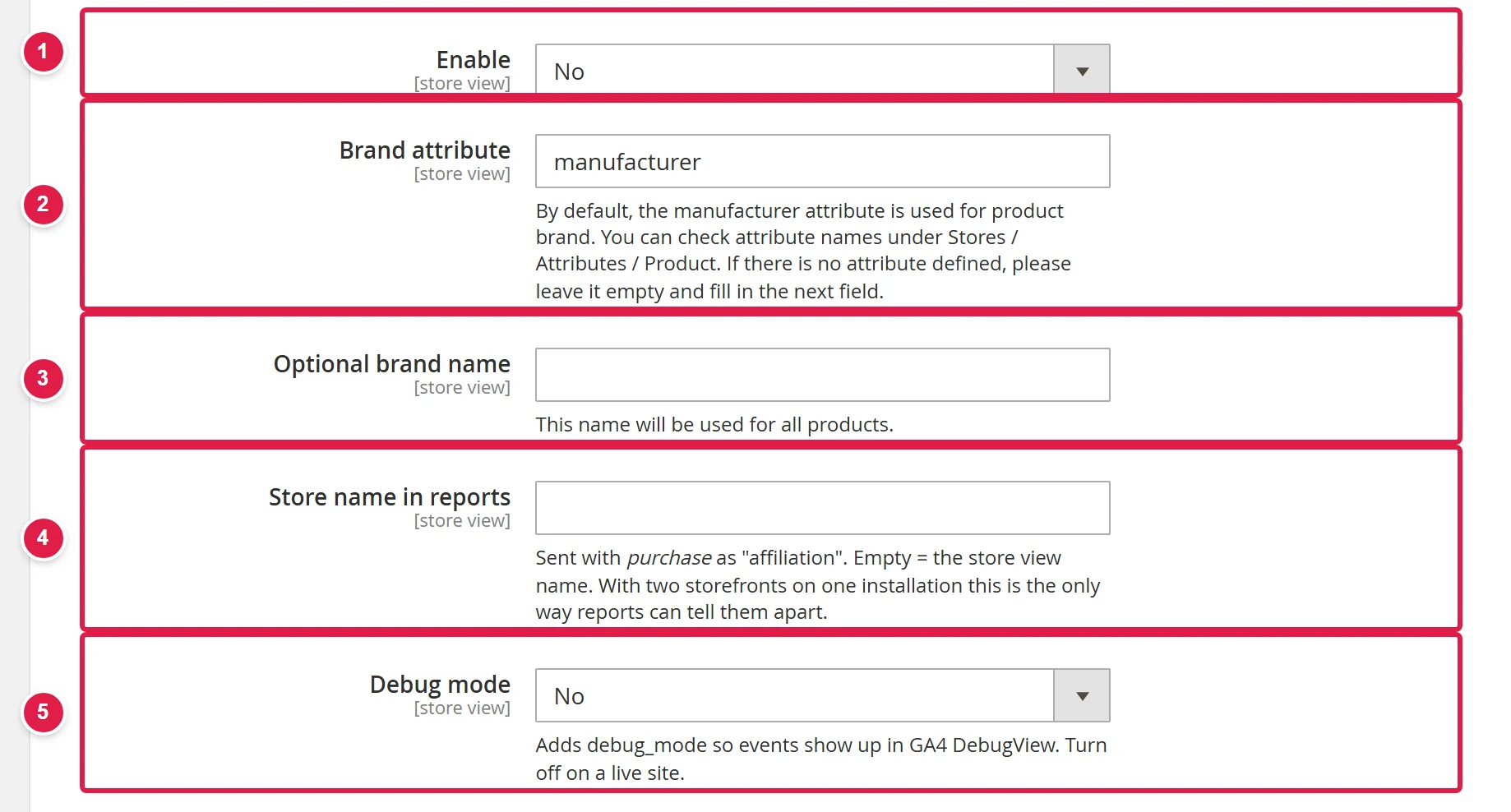
- Enable - No stops all events.
- Brand attribute - where the brand in reports comes from.
- Optional brand name - one name for all products.
- Store name in reports - separates sales by language.
- Debug mode - No on a live store.
After a change, click Save Config and flush the cache.
Cookie consent
Tracking is tied to the cookie banner (GDPR: cookies and consent). Until a shopper allows analytics cookies, Google only receives anonymous signals with no personal data. A purchase that the store reports to Google from the server (when the shopper doesn't return to the thank-you page after paying) is also only sent if the shopper allowed analytics. That's why the numbers in Analytics are always lower than in your store admin; this is expected.
Where you see the data
Open your store, accept cookies, view a product and add it to the cart.
In Google Analytics, open Reports › Realtime. The events should include a product view and an add to cart.
You'll find purchases in Reports › Monetization › Ecommerce purchases, usually not until the next day.
In Google Ads, check Goals › Conversions: the status of the Purchase conversion should be Recording conversions.
Common problems
Analytics shows visits but no purchases
Check that Enable is set to Yes for the right store view and that you accepted cookies during your test. If everything looks fine, write to us: we'll check the connection to your account.
Google Ads doesn't record conversions, but Analytics sees the purchases
The Google Ads conversion label is missing. Send it to us from Google Ads (Goals › Conversions › action › label) and we'll enter it.
Every purchase appears twice in reports
That shouldn't happen: Google counts the same order number once. If you see duplicates, the site has another, manually added tracking code. Remove it or write to us.